

વર્ણન
CiteKit is a WordPress citation and footnotes plugin that lets you add APA, MLA, Chicago, and Harvard citations, generate bibliographies, and manage references across your site.
Add structured in-text citations and footnotes using simple shortcodes like [cite] or Gutenberg blocks. Automatically generate a formatted bibliography at the end of any post using [bibliography] or the Bibliography by CiteKit block.
Create reusable references with custom IDs like [cite id=”who-2024″], or let CiteKit assign them automatically. Citations are linked to your bibliography with numbered markers ([1], [2], etc.) for a clean, academic-style experience.
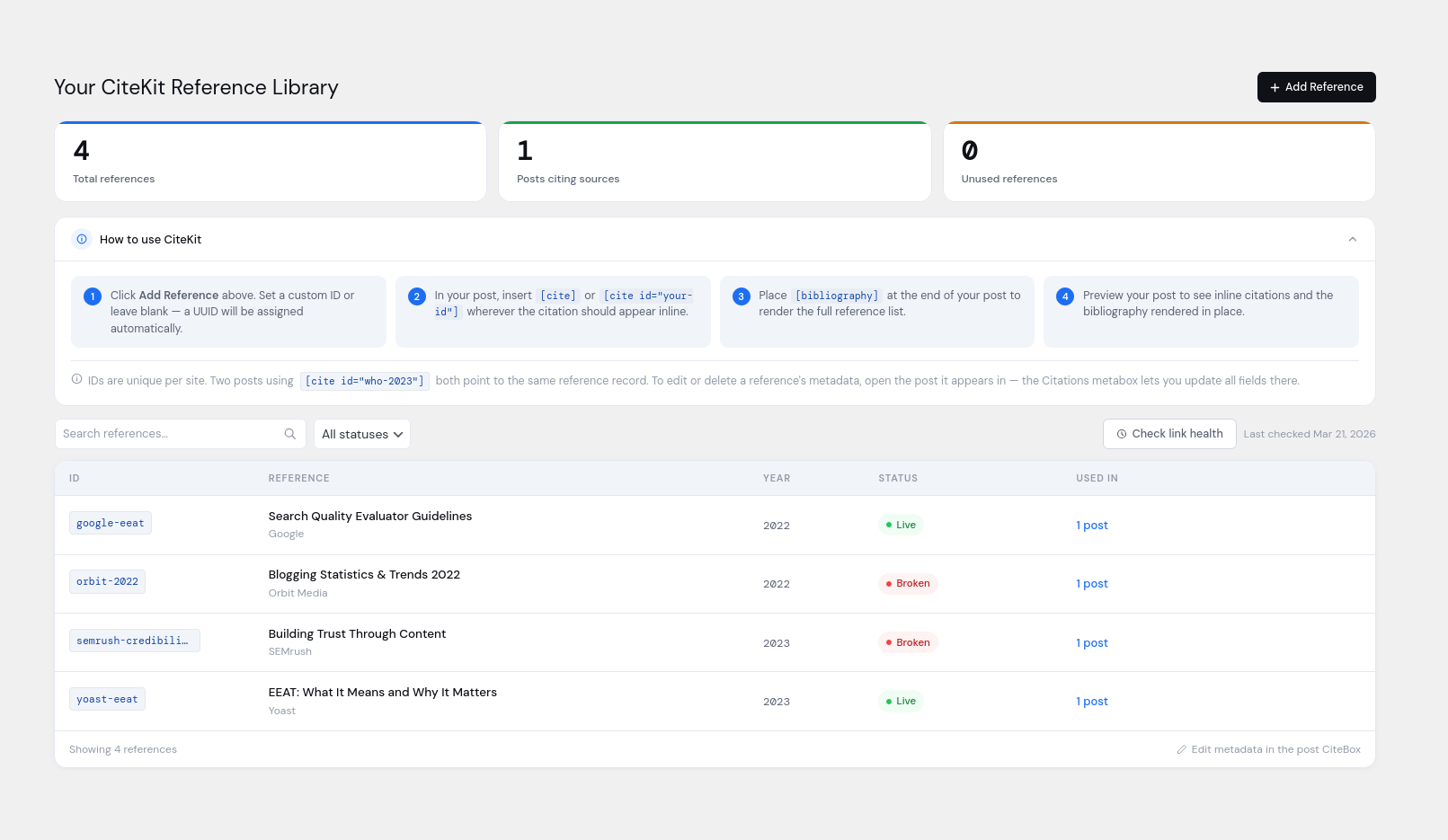
Use the built-in Reference Library to track, audit, and manage all citations and references across your site. Monitor link status, keep sources up to date, and maintain a consistent, credible content structure.
Perfect for bloggers, publishers, and content creators who want a complete citation, footnotes, and bibliography system inside WordPress.
Related Citation Tools
- Bibliography Generator
- Cite a Book in APA
- Cite a YouTube Video in MLA
- Cite a Journal in Harvard
- Cite a Website in MLA
- Cite a Report in IEEE
Features
Inline Citation, Tooltip & Footnote Formats in Block Editor: Use the CiteKit Citation, Tooltip, and Footnote buttons on the block toolbar to insert and manage inline citations, hover tooltips, and numbered footnotes directly within any paragraph, heading, list, or quote block. Click an existing inline badge to open it for editing, or place your cursor and click the toolbar button to insert a new one — no separate block needed for the inline markers.
Inline [cite] Shortcode with Auto-ID
Insert citations directly into post content using [cite]. Unique IDs are automatically assigned on first save, or set a custom human-readable ID with [cite id=”who-2024″].
CiteBox — Post-Level Citation Editor
A dedicated metabox in the post and page editor shows every citation in the current post. Fill in author, title, year, and URL without leaving the editor. Fields save instantly via AJAX and metadata is shared across all posts that reference the same ID.
Bibliography Block & Shortcode
Insert a formatted, backlinked bibliography anywhere in your content using the native Bibliography by CiteKit block or the [bibliography] shortcode. Entries are ordered by appearance in the post, each with a back-reference to its inline citation, and style and heading are configurable per block or per shortcode.
Manual Bibliography Composition
Create a standalone bibliography with [bibliography title=”References”] Source 1 ; Source 2 [/bibliography] — ideal for static lists or non-[cite] workflows.
Numbered Footnotes with Hover + List
Add true footnotes with [footnote]…[/footnote] or the Footnote toolbar button. Each footnote is auto-numbered in order of appearance and renders as a superscript marker with a hover popup. Add [footnotes] or the Footnotes by CiteKit block at the end of your post to render the full numbered list with back-links to each marker. Explicit list mode also supported: [footnotes]Note one; Note two; Note three[/footnotes].
Reference Library
A central admin page listing every citation used across your site. Citations appear in the library the moment they are inserted into any post or page. See which posts use each reference, sort and filter by status, and manage everything from one place.
Link Health Checker
Check whether your source URLs are still reachable. Each reference is marked Live, Broken, or Unchecked. Results are saved per citation so you can spot dead links before your readers do.
Multiple Citation Style Support
Output in APA, MLA, Chicago (Author-Date and Notes-Bibliography), Harvard, or IEEE using [bibliography style=”apa|mla|chicago-ad|chicago-nb|harvard|ieee”].
Default Style Setting
Set your preferred citation style and bibliography heading once in Settings CiteKit. All [bibliography] shortcodes and Bibliography blocks site-wide use this default unless overridden per post.
Tooltip-Style Inline Notes
Add inline definitions and asides with [tooltip]…[/tooltip] or the Tooltip toolbar button. For underline-style tooltips, the tip attribute holds the visible inline term and the content between the tags holds the definition shown on hover — e.g. [tooltip tip=”FOSS”]Free and Open Source Software[/tooltip]. Default style is dashed; use style=”dotted” for a dotted underline. For superscript-symbol markers, use style=”” (or †, ‡, §, ¶, or any short string) where the shortcode content becomes the popup: [tooltip style=”“]Aside text here[/tooltip].
CiteKit Blocks & Formats
Bibliography by CiteKit — available in the CiteKit category in the block inserter. Renders a formatted, backlinked bibliography for the current post. Configure citation style and heading in the block sidebar.
Footnotes by CiteKit — available in the CiteKit category in the block inserter. Renders the numbered footnote list collected from [footnote] shortcodes or CiteKit Footnote toolbar tokens earlier in the post. Place at the end of your post. Configure heading in the block sidebar. Distinct from WordPress core’s built-in Footnotes block (added in WP 6.3) — CiteKit’s version adds hover popups on markers, explicit list mode, custom heading, and integration with the rest of the CiteKit system.
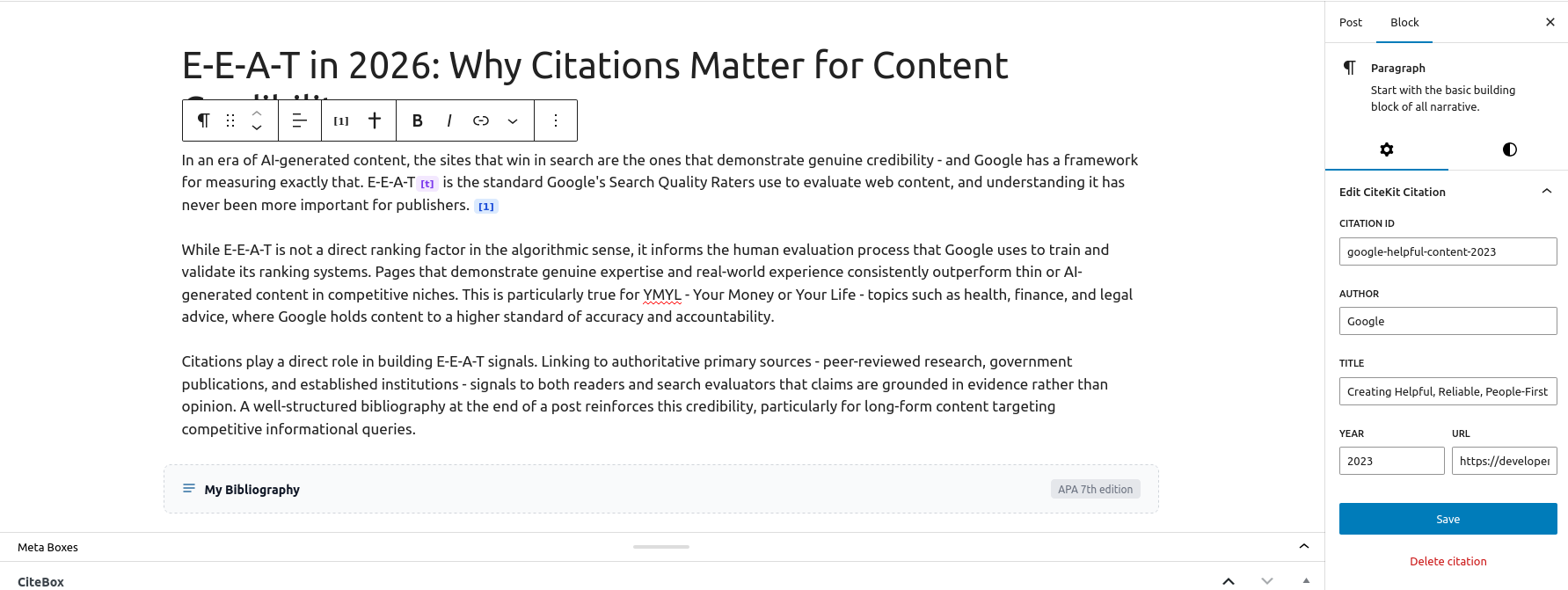
Citation Format — the CiteKit Citation button on the block toolbar. Click an existing citation badge to open its reference details for editing, or place your cursor and click the button to insert a new one. Enter the citation ID and reference details in the block options panel.
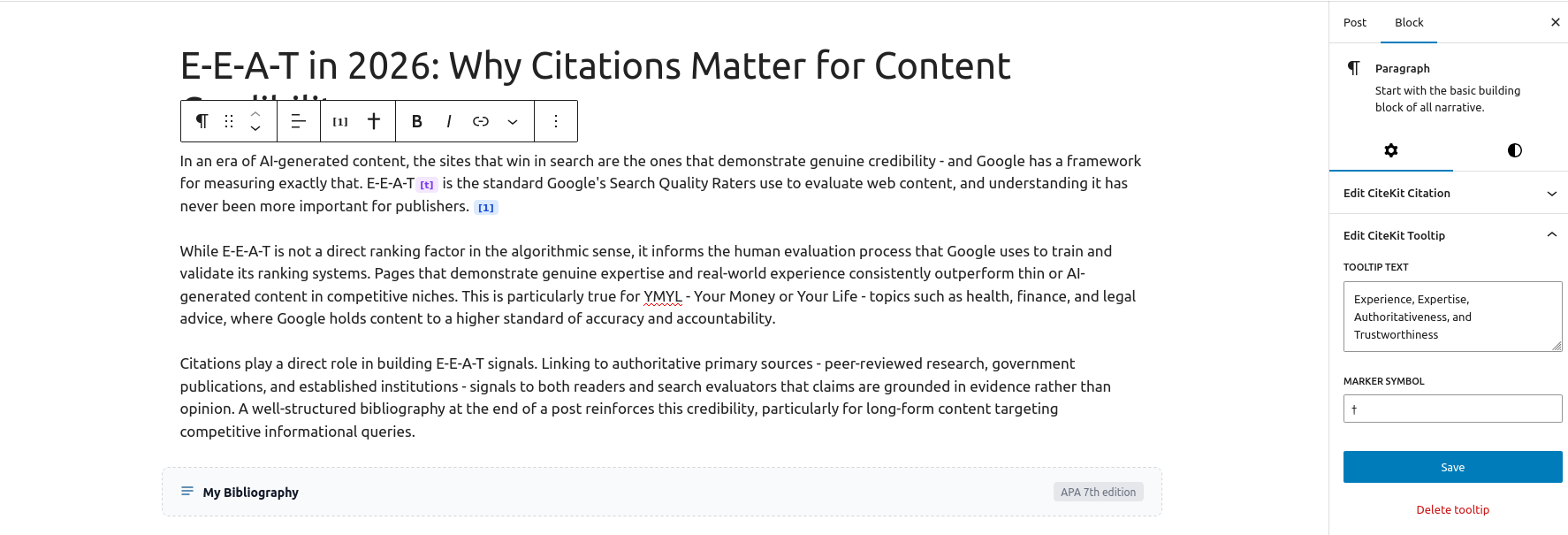
Tooltip Format — the CiteKit Tooltip button on the block toolbar. Choose a style (dashed underline, dotted underline, or symbol marker), enter the Term (the visible inline word) and the Definition (shown on hover). Click an existing tooltip badge to edit.
Footnote Format — the CiteKit Footnote button on the block toolbar. Enter your footnote text; a superscript number is inserted at the cursor and the text appears both on hover and in the Footnotes list at the end of the post. Click an existing footnote badge to edit.
CiteKit Shortcodes
Inline Citations
- [cite] — Inline citation with auto-generated UUID
- [cite id=”custom-id”] — Inline citation with a user-defined ID
Bibliography
- [bibliography] — Auto-generated bibliography for the current post
- [bibliography style=”mla” title=”Article Sources”] — Override style and heading per post
- [bibliography style=”chicago-ad”] — Override style only; heading uses your site default
- [bibliography] Smith, 2026; John Jacobs, The Red Roof, 2021 [/bibliography] — Manual entry list
Tooltips
- [tooltip tip=”Term”]Definition[/tooltip] — Dashed underline tooltip (default):
tipis the visible term, content is the popup definition - [tooltip style=”dotted” tip=”Term”]Definition[/tooltip] — Dotted underline variant
- [tooltip style=”*”]Popup content[/tooltip] — Symbol-marker tooltip (also: †, ‡, §, ¶, or any short string) — content becomes the popup
Footnotes
- [footnote]Note text[/footnote] — Numbered superscript footnote with hover popup; numbered in order of appearance per post
- [footnotes] — Render the full numbered footnote list at this position (usually end of post)
- [footnotes title=”Notes”] — Render the list with a custom heading
- [footnotes]Note one; Note two; Note three[/footnotes] — Render an explicit numbered list without using [footnote] markers
Supported bibliography styles: apa, mla, chicago-ad, chicago-nb, harvard, ieee
સ્ક્રીનશોટ
બ્લોક્સ
આ પ્લગિન 2 બ્લોક્સ આપે છે.
- Bibliography by CiteKit Add citations, references, and footnotes to your post and automatically generate a formatted bibliography. Supports APA, MLA, Chicago, Harvard, and IEEE styles.
- Footnotes by CiteKit Render the list of footnotes collected from [footnote] shortcodes or CiteKit Footnote toolbar tokens earlier in the post. Supports hover popups, auto-numbering, and back-links. Place at the end of your post. Not the same as WordPress core's built-in Footnotes block.
સ્થાપન
Via WordPress Admin
- Go to Plugins Add New
- Search for “CiteKit” or “citation manager”
- Click Install Now, then Activate
Via ZIP Upload
- Download the .zip from the WordPress Plugin Directory
- Go to Plugins Add New Upload Plugin
- Upload the .zip and click Install Now, then Activate
Via FTP
- Extract the .zip and upload the citation-reference-manager folder to /wp-content/plugins/
- Activate from the Plugins screen in your WordPress dashboard
Post-Installation Setup
After activation, go to CiteKit Library Getting Started for a step-by-step walkthrough plus a visual guide explaining the difference between citations, tooltips, footnotes, and bibliographies. Then:
- Open any post or page in the block editor and click the CiteKit Citation button on the paragraph block toolbar to insert your first inline citation — fill in the ID, author, title, year, and URL in the block options panel
- To add a hover tooltip, click the CiteKit Tooltip button on the toolbar, choose a style (dashed, dotted, or symbol), then enter the term and definition
- To add a numbered footnote, click the CiteKit Footnote button on the toolbar and enter your footnote text — it will appear as a superscript marker and in the footnote list at the end of the post
- Click any existing citation, tooltip, or footnote badge in the editor to re-open its details for editing at any time
- The CiteBox metabox below the editor shows every citation in the current post — you can fill in or update reference details there too
- Add a Bibliography by CiteKit block or [bibliography] shortcode at the end of your post to automatically render a formatted, backlinked reference list
- Add a Footnotes by CiteKit block or [footnotes] shortcode to render the collected footnote list
- Visit CiteKit Library to see, audit, and manage all citations across your entire site
- Go to CiteKit Library Settings to set your preferred default bibliography style and heading
એફએક્યુ (FAQ)
-
Which fields are supported per citation?
-
Author, Title, Year, and URL.
-
What is the difference between a custom ID and a UUID?
-
When you write [cite id=”who-2024″], CiteKit uses that string as the citation’s permanent identifier. When you write [cite] with no ID, CiteKit auto-assigns a UUID (e.g. a3f8c1d2-04be-4e7a-9b23-f1cc8820de45) on first save. Both work identically — custom IDs are simply easier to recognise and reuse across posts.
-
Can the same citation ID be used in multiple posts?
-
Yes. Two posts using [cite id=”who-2024″] both point to the same reference record. Editing the metadata in either post’s CiteBox updates the shared record everywhere.
-
What styles can tooltips use?
-
Three styles are supported.
style="dashed"(default) andstyle="dotted"render with thetipattribute as the visible underlined term and the content between the tags as the definition shown on hover — e.g.[tooltip tip="FOSS"]Free and Open Source Software[/tooltip]. Any other string (such as*,†,‡,§,¶, ornote) is treated as a symbol marker, rendered as a superscript where the shortcode content becomes the popup — e.g.[tooltip style="*"]Popup aside[/tooltip]. -
What is the difference between a tooltip and a footnote?
-
Tooltips are inline definitions or explanations that appear on hover only — supplementary aids that aren’t part of the document’s permanent record. Footnotes are numbered notes that appear both on hover AND in a full list at the end of the post via
[footnotes]or the Footnotes by CiteKit block — they’re part of the article’s substantive content. Citations, by contrast, are numbered references to external sources that link to the bibliography. The Getting Started page inside your CiteKit admin includes a “What’s the difference?” section that explains each feature side-by-side with examples. -
How are footnotes numbered?
-
Footnotes are auto-numbered in order of appearance within each post, starting from 1. Numbering is per-post — each post has its own footnote sequence. Footnotes are distinct from citations: citations use bracketed baseline markers like [1], footnotes use superscript numbers like ¹.
-
What’s the difference between the Footnotes by CiteKit block and WordPress’s built-in Footnotes block?
-
WordPress added a native Footnotes block in core 6.3. It provides basic numbered footnotes at the bottom of the post with inline markers. The Footnotes by CiteKit block adds several features on top: hover popups on markers (so readers can preview without scrolling), an explicit list mode via
[footnotes]one; two; three[/footnotes], custom heading control, integration with CiteKit’s citation and bibliography system, and a consistent visual style shared with the rest of the plugin’s features. You can use either — CiteKit’s does more, WordPress core’s is minimal. -
Is this a replacement for Zotero or EndNote?
-
No. CiteKit is optimised for WordPress publishing workflows, not full academic reference management.
-
Does this work with the block editor?
-
Yes. CiteKit provides a Bibliography by CiteKit block, a Footnotes by CiteKit block, and three inline RichText formats (Citation, Tooltip, and Footnote) that appear as toolbar buttons on paragraphs, headings, list items, and quote blocks. Shortcodes continue to work in both the classic editor and the block editor.
-
Does CiteKit support custom post types?
-
Posts and pages are supported in the free version. Custom post type support is available in CiteKit Pro.
-
Does the Citation block support searching my reference library?
-
The block sidebar lets you enter a citation ID and reference details directly. A searchable reference picker that connects to your full library is available in CiteKit Pro.
સમીક્ષાઓ


ફાળો આપનાર & ડેવલપર્સ

વિકાસમાં રસ ધરાવો છો?
કોડ બ્રાઉઝ કરો, જોવોઅસ્વીએન રેપોઝિટરીમાંથી,અથવા સબ્સ્ક્રાઇબ કરોડેવલપમેન્ટ દ્વારાઆરઅસઅસ.
ચેન્જલૉગ
3.2.1
- Improved: APA author rendering now uses initials (Brown, B.) rather than full first names, matching APA 7th edition convention.
- Improved: Organizational authors (World Health Organization, Stanford University, etc.) are now detected and passed through unchanged rather than being mangled into initial form.
- Fixed: Double period after author initials in APA, MLA, and Chicago bibliography entries.
3.2.0
- New: You can now tell CiteKit what kind of source each citation is — a
journal article, a book, a chapter, a report, a news article, a thesis,
or a plain web page. Each type asks for the fields that actually matter
for it. - New: Lots more fields are available where they make sense — Journal,
Volume, Issue, Pages, Publisher, Place, Edition, and DOI. You’ll find
them under “More fields” in CiteBox, and in the block editor sidebar. - New: Multiple authors are supported. Enter them as “Smith, Jane; Doe,
John” and each style handles the names the way it’s supposed to. - Improved: Bibliographies now render properly per source type. A journal
article in Chicago, MLA, APA, Harvard, or IEEE actually looks like a
journal article — with volume, issue, pages, and DOI when you’ve filled
them in. Books show publisher and edition. Chapters, reports, news, and
theses each get the treatment they should. - Improved: The six built-in styles have been cleaned up across the board
— punctuation, field order, italics — to match what each style guide
actually calls for. - Improved: The block editor sidebar panel now has the full set of fields.
The toolbar popover stays small for quick inserts. - Existing citations carry over automatically. Anything from before 3.2.0
starts out as a web page and you can change it whenever you like.
3.1.0
- New: Numbered footnote feature —
[footnote]...[/footnote]shortcode and Footnote toolbar format. Each footnote is auto-numbered in order of appearance and renders as a superscript marker with hover popup. - New:
[footnotes]shortcode and Footnotes by CiteKit block — renders the full numbered list at the end of the post with back-links to each marker. Explicit list mode also supported:[footnotes]one; two; three[/footnotes]. - New: Tooltip dashed/dotted underline styles.
[tooltip tip="Term"]Definition[/tooltip]renders thetipattribute as the visible inline term (dashed underline by default; dotted available viastyle="dotted") and the content between the tags as the definition shown on hover. Symbol-marker mode (style="*",†, etc.) remains fully supported and backward compatible — in symbol mode the shortcode content continues to serve as the popup. - New: “Footnotes by CiteKit” and “Bibliography by CiteKit” block names in the block inserter.
- New: Getting Started page – side-by-side feature cards explaining citations, tooltips, footnotes, and bibliographies, with a decision guide for which to use.
- Improved: Inline citation markers now render at baseline text level (e.g. [1]) instead of superscript, matching IEEE convention and creating clear visual hierarchy with footnote markers (which remain superscript). This makes citations and footnotes instantly distinguishable at a glance.
- Improved: Editor caret behavior after inserting a citation, tooltip, or footnote – a zero-width space is now appended so the cursor lands cleanly after the inserted token instead of getting stuck.
3.0.0
- New: Bibliography block — render a formatted bibliography directly from the block editor with style and heading controls in the sidebar.
- New: CiteKit block category in the Gutenberg inserter.
- New: Citation inline format — toolbar button on paragraphs, headings, list items, and quote blocks.
- New: Tooltip inline format — toolbar button to wrap selected text in a hover tooltip with custom marker symbol.
- New: [tooltip style=”†”] attribute — set a custom superscript marker per tooltip. Defaults to † if omitted. Backward-compatible with all existing [tooltip] usage.
- New: Getting Started page with step-by-step slideshow.
- Improved: CiteBox metabox now displays truncated UUIDs alongside custom IDs so auto-assigned references are clearly distinguishable.
- Improved: All library queries now find both shortcode-based and block-based citations.
- Removed: Add Reference from Library button — references are created naturally by inserting citations in posts.
2.0.0
- New: Redesigned Reference Library with sort, search, and status filtering.
- New: Link Health Checker — checks whether source URLs are live or broken, with per-citation status badges.
- New: Settings page (CiteKit Library Settings) — set a default bibliography style and heading used by all [bibliography] shortcodes site-wide.
- New: Remove from Post — remove a citation from a specific post directly from the Used In modal.
- New: post_count column — tracks how many posts reference each citation; unused records are cleaned up automatically.
- Improved: ID column added to CiteBox metabox.
- Fixed: [bibliography] heading now correctly uses the saved default title in all rendering paths.
1.0.0
- Initial release.
- Shortcode support for [cite], [bibliography], and [tooltip].
- Post-level citation editor (metabox).
- Citation Library in admin sidebar.
- APA, MLA, Chicago, Harvard, IEEE citation style support.